
JavaScript · 3 min read
The DOM and Events
Select and change page elements, create new ones, and respond to clicks, typing, and form submissions.
The DOM (Document Object Model) is the browser's live, tree-shaped representation of your HTML. JavaScript can read and change it, and the page updates instantly.
Selecting elements
js
document.getElementById("title");          // one element by id
document.querySelector(".card");           // the FIRST match of any CSS selector
document.querySelectorAll(".card");        // ALL matches (a NodeList)
document.querySelector("nav a.active"); // any CSS selector worksChanging elements
js
const title = document.querySelector("h1");

title.textContent = "New title";          // change text (safe)
title.style.color = "tomato";             // inline style
title.classList.add("highlight");         // add a CSS class
title.classList.remove("hidden");
title.classList.toggle("dark");           // add if missing, remove if present
title.setAttribute("data-step", "2");

const link = document.querySelector("a");
link.href = "https://developer.mozilla.org";Creating and removing elements
js
const li = document.createElement("li");
li.textContent = "Learn the DOM";
document.querySelector("ul").appendChild(li);

li.remove(); // delete it again
Events
An event is something that happens: a click, a key press, a form submission, the page loading. Listen for events with addEventListener:
js
const button = document.querySelector("#save");

button.addEventListener("click", (event) => {
  console.log("Clicked!", event.target);
});
Common events:
| Event | Fires when |
|---|---|
click | An element is clicked or tapped |
input | The value of an input changes (every keystroke) |
change | A select, checkbox, or input value is committed |
submit | A form is submitted |
keydown | A key is pressed |
mouseover / mouseout | The pointer enters or leaves an element |
DOMContentLoaded | The HTML has finished loading |
Stopping default behavior
Forms reload the page when submitted. Stop that with event.preventDefault():
js
form.addEventListener("submit", (event) => {
  event.preventDefault();
  // handle the data with JavaScript instead
});
Event delegation
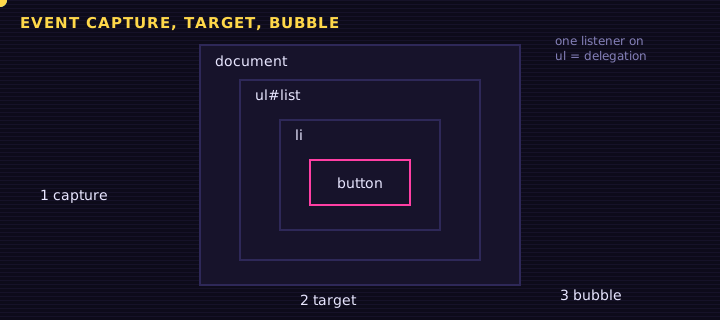
Instead of adding a listener to every list item, add one to the parent and check event.target. It also works for items added later:
js
list.addEventListener("click", (event) => {
  if (event.target.matches("button.delete")) {
    event.target.closest("li").remove();
  }
});
Project: a to-do app
This app uses everything so far: variables, functions, arrays, objects, the DOM, and events. It even saves your tasks in localStorage so they survive a page reload.
<div class="app">
<h2>My To-Do List</h2>
<form id="form">
  <input id="task" placeholder="What do you need to do?" autocomplete="off" required>
  <button type="submit">Add</button>
</form>
<ul id="list"></ul>
<p id="count"></p>
</div>
Edit this example in the Playground.
Click a task to mark it done; click ✕ to delete it.
Summary
querySelectorandquerySelectorAllfind elements using CSS selectors.- Change text with
textContent, classes withclassList, and attributes withsetAttribute. - Create elements with
createElementand add them withappendChildorappend. - React to events with
addEventListener; usepreventDefaultto stop default behavior.
Saved in this browser.